




A Practical Guide to Turning Browser Tabs Into a Reusable Knowledge System
We’ve all been there: a dozen, two dozen, maybe even fifty browser tabs open, each a silent testament to an intention, a curiosity, or a half-finished task. They represent articles we meant to read, research we started, products we considered, or tutorials we planned to follow. This digital clutter isn’t just an aesthetic annoyance; it’s a significant drain on our cognitive resources, a source of decision fatigue, and a graveyard for potentially valuable information.
The promise of the internet is endless information, but the reality for many is endless unprocessed information. We open tabs with the best intentions, believing we’ll return to them, only to find them buried under new ones, eventually forgotten or closed in a moment of exasperation. This cycle leads to lost insights, duplicated efforts, and a pervasive feeling of being overwhelmed by the very tools meant to empower us.
This guide offers a practical, lightweight workflow to transform your chaotic browser tabs into a structured, reusable knowledge system. The goal isn’t to introduce another complex personal knowledge management (PKM) tool, but to leverage simple, often built-in features to capture, process, and retrieve information effectively. We’ll move beyond merely “saving” links to actively integrating them into your learning, projects, and daily productivity.
The Tab Overload Problem (and Why It Matters)
Before we dive into solutions, let’s acknowledge the real impact of tab overload. It’s more than just a messy browser window; it’s a symptom of a deeper challenge in managing digital information.
- Cognitive Load: Each open tab demands a tiny fraction of your mental bandwidth. Even if you’re not actively looking at it, your brain registers its presence as an unfinished task or an unmade decision. This constant background hum contributes to mental fatigue and reduces your capacity for focused work.
- Decision Fatigue: The sheer number of tabs creates a paradox of choice. Which one should you look at next? Which one is most important? The effort of deciding often leads to inaction, or worse, aimless clicking without real progress.
- Lost Information: How many times have you remembered a crucial piece of information, only to realize you saw it in a tab you closed weeks ago? Without a system, valuable insights, resources, and ideas simply vanish into the digital ether, forcing you to re-research or reconstruct knowledge.
- Context Switching Costs: Jumping between unrelated tabs breaks your flow, forcing your brain to re-orient itself to a new context. This constant switching is inefficient and significantly slows down productivity.
Understanding these impacts is the first step towards recognizing that managing your tabs isn’t just about tidiness; it’s about reclaiming your focus, preserving your insights, and building a more effective way to learn and work.
Shifting Your Mindset: From “Open” to “Process”
The fundamental shift required is to stop viewing an open tab as a temporary holding place and start seeing it as an item in an inbox that requires processing. Instead of “I’ll get back to this,” the mindset becomes “What action does this tab require?”
This isn’t about immediate closure, but about intentionality. Every time you open a tab, or when you encounter a cluster of existing tabs, ask yourself: “What is the ultimate purpose of this information, and what is the smallest next action I can take to move it towards that purpose?”
Think of your browser as a conveyor belt of information. Your job is to sort, categorize, and direct each item to its appropriate destination, rather than letting it pile up indefinitely. This proactive approach transforms passive consumption into active knowledge management.

The Core Workflow: A 3-Step Process
This workflow is designed to be quick, repeatable, and adaptable. It focuses on making a decision about each tab and moving it into a more permanent, retrievable state.
Step 1: Triage and Categorize (The Quick Scan)
When you encounter a cluster of open tabs (e.g., at the end of a browsing session, before starting focused work, or during a weekly review), perform a rapid triage. The goal here is speed and decision-making, not deep engagement.
- Is it still relevant and useful? If not, close it immediately. Don’t let guilt keep dead weight.
- Does it require immediate action? (e.g., reply to an email, complete a form, buy something urgent). If yes, do it now if it takes less than two minutes, or move it to your task manager.
- Is it for “Read Later”? (e.g., a long article, an interesting blog post you want to digest). Send it to a dedicated read-it-later app like Pocket or Instapaper. These apps provide a distraction-free reading environment and keep your browser clean.
- Is it a long-term reference? (e.g., documentation, a useful tool, a resource you’ll need repeatedly for a project). This is where bookmarking comes in.
- Is it information you need to extract and integrate? (e.g., key facts for a report, steps for a tutorial, ideas for a presentation). This is the “Process Now” category, leading to Step 2.
The key here is to make a decision for every tab. No tab should remain open without a clear, defined purpose and an intended next step.
Step 2: Process and Extract (Turning Information into Knowledge)
This is where raw information transforms into usable knowledge. For tabs categorized as “Process Now,” your goal is to pull out the essence and make it your own.
- Summarize Key Points: Don’t just copy-paste. Read the content and articulate its core message in your own words. What are the 2-3 most important takeaways?
- Identify Action Items: Does the content suggest a task, a follow-up, or an experiment? Extract these as concrete actions and add them to your task manager.
- Capture Relevant Snippets: If there are specific quotes, data points, or code snippets you absolutely need, copy them. But always add context and your own notes around them.
- Connect to Existing Knowledge: How does this new information relate to what you already know or projects you’re working on? Make explicit connections.
- Formulate Questions: What questions does this information raise? What further research does it suggest? Capture these for future exploration.
This active processing ensures you’re not just hoarding links, but building a personal repository of understood and actionable knowledge. Once processed, the original tab can almost always be closed.

Step 3: Store and Connect (Making it Retrievable)
Where does this processed information go? The goal is retrievability without complexity. Choose a few simple tools and stick with them.
For Bookmarks/References:
- Browser Bookmarks: Use your browser’s native bookmarking feature. Organize them into folders (e.g., “Project X Research,” “Web Dev Resources,” “Inspiration”). Use descriptive names.
- Dedicated Bookmark Managers: If you need more power (tagging, annotations, cross-device sync), consider lightweight options like Raindrop.io or Pinboard.
For Notes/Summaries/Action Items:
- Simple Note-Taking Apps: Apple Notes, Google Keep, Notion (free tier for simple notes), or a plain text editor. The key is ease of capture and searchability.
- Project-Specific Files: For project research, a dedicated document (e.g., a Google Doc, Word file, or Markdown file) within your project folder can be ideal.
- Task Manager: For action items, directly add them to your preferred task manager (e.g., Todoist, Things, Microsoft To Do).
The crucial element here is consistency. Decide on your storage locations and use them reliably. The best system is the one you actually use.
Tools of the Trade (Lightweight Edition)
You don’t need a complex “Second Brain” system to manage your tabs effectively. Here are some lightweight tools and features that can significantly enhance your workflow:
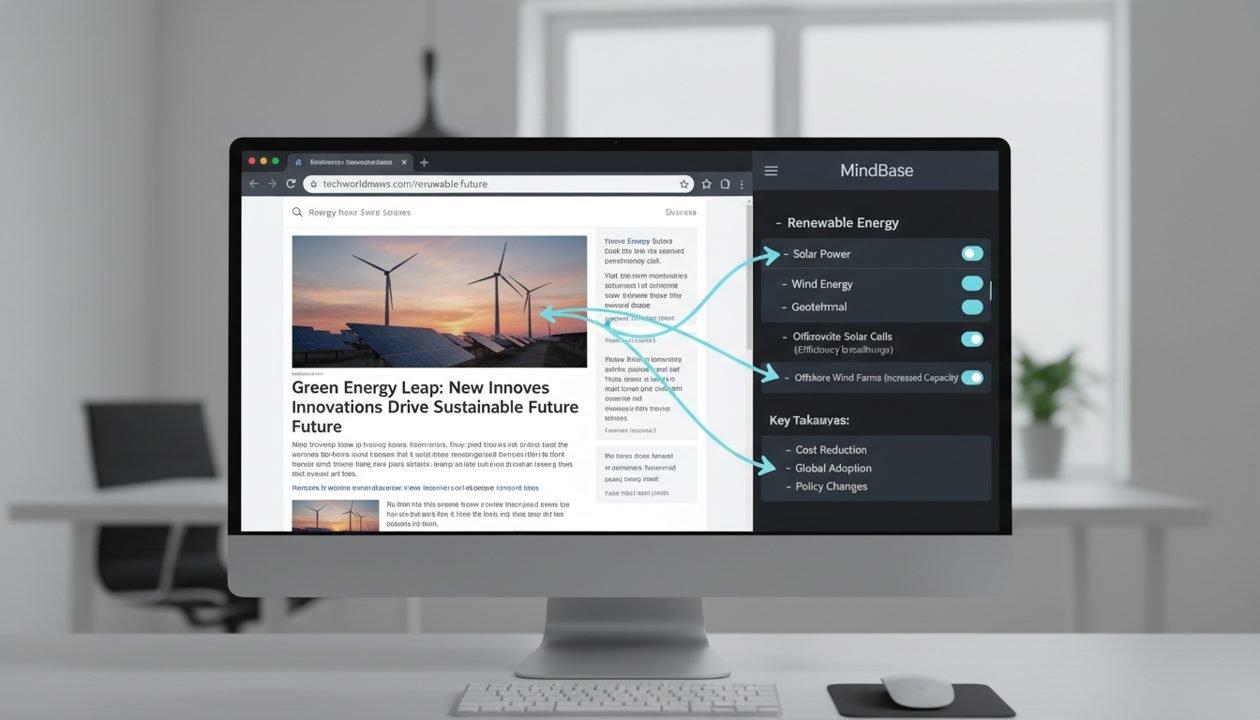
- Browser Tab Groups: Most modern browsers (Chrome, Edge, Firefox) offer tab grouping. Use this to organize tabs by project, topic, or immediate task. This reduces visual clutter and allows you to switch contexts easily.
- Read-It-Later Apps (Pocket, Instapaper): Essential for articles you want to read but not immediately. They strip away distractions and sync across devices, turning your reading list into a focused queue.
- Browser’s Native Bookmarks: Don’t underestimate them. Create a clear folder structure. Use tags if your browser supports them (or use a dedicated bookmark manager).
- Simple Note-Taking Apps (Apple Notes, Google Keep, Obsidian/Logseq for local files): Choose one that’s fast to open and easy to search. For more advanced users, Obsidian or Logseq can be powerful for local, interconnected notes without cloud lock-in, but start simple.
- Task Manager (Todoist, Microsoft To Do, Things): For capturing actionable items derived from your tabs. Integrate links directly into tasks where relevant.
- One-Click Web Clippers: Many note-taking apps offer browser extensions to quickly clip articles or selected text directly into your notes. Use these judiciously to avoid just copying entire pages.
The power comes from how you use these tools, not how many you use. Less is often more when building a sustainable system.
Practical Application: Scenarios and Examples
Let’s look at how this workflow applies to common situations:
Scenario 1: Researching for a New Project
You’re starting a new project and have opened 15 tabs with articles, competitor analyses, and resource links.
Workflow:
- Triage: Quickly scan each tab. Close irrelevant ones. Send long articles to Pocket. Bookmark core resources into a “Project X Resources” folder in your browser.
- Process: For the remaining tabs (e.g., competitor analyses), open a new document (e.g., “Project X Research Notes” in Notion or Google Docs). Go through each tab, extract key findings, summarize competitor strategies, and note down any unique features. Add links to the original source within your notes for reference.
- Store: Your summarized notes are in your project document. Your core resources are bookmarked. Your reading list is in Pocket. Actionable insights (e.g., “Investigate competitor Y’s pricing model”) go into your task manager.
Scenario 2: Learning a New Skill or Technology
You’re learning Python and have opened tabs for tutorials, documentation, and code examples.
Workflow:
- Triage: Close outdated tutorials. Send comprehensive guides to Pocket for focused reading. Bookmark official documentation pages into a “Python Docs” folder.
- Process: For code examples or specific concepts, open your preferred note-taking app (e.g., Obsidian). Create a note titled “Python – [Concept Name]”. Summarize the concept in your own words, paste relevant code snippets (with attribution), and add your own thoughts or questions. Identify practice exercises as action items.
- Store: Your notes are in Obsidian, linked to other Python concepts. Documentation is bookmarked. Practice tasks are in your task manager.
Maintaining Your System: Regular Review and Refinement
A knowledge system isn’t a static entity; it’s a living one that requires occasional care. Regular review prevents buildup and ensures your system remains useful and relevant.
Weekly Review (15-30 minutes):
- Clear Open Tabs: Process any remaining open tabs using the 3-step workflow. Aim for a “tab zero” state if possible.
- Review “Read Later” Queue: Skim your Pocket/Instapaper list. Archive or delete articles you no longer need. Read a few if time permits.
- Scan Recent Bookmarks: Ensure they are correctly categorized and named. Delete any duplicates or irrelevant ones.
- Quick Scan of Notes: Briefly look through recent notes. Are they clear? Do they need further connection or refinement?
Monthly/Quarterly Review (30-60 minutes):
- Deep Clean Bookmarks: Go through older bookmark folders. Are they still relevant? Consolidate or delete.
- Review Note Categories/Tags: Are your organizational structures still serving you? Adjust as needed.
- Assess Tool Usage: Are you consistently using your chosen tools? Is one tool becoming redundant? Simplify if possible.
This consistent maintenance prevents your system from becoming another source of clutter, ensuring it remains a valuable asset for your productivity and learning.
Beyond the Tabs: Integrating with Your Daily Flow
This tab management system isn’t an isolated practice; it’s a habit that integrates into your broader productivity framework. By consistently processing information from your browser, you’re not just clearing tabs; you’re cultivating a habit of intentionality with all incoming information.
Consider how this workflow can inform other areas:
- Email Management: Treat emails with links or information similarly. Don’t just star them; process the embedded information.
- Physical Notes: If you jot down ideas on paper, ensure they eventually find their way into your digital system if they need to be retrievable.
- Meeting Notes: Summarize key decisions and action items from meetings and integrate them into your project notes and task manager.
The goal is a seamless flow of information from capture to action to long-term knowledge. Your browser tabs are often the first point of entry for much of this information, making their effective management a cornerstone of an efficient personal knowledge system.
Conclusion
The endless stream of information available online can be a powerful asset or an overwhelming burden. By adopting a simple, consistent workflow for managing your browser tabs, you can transform that burden into a robust, reusable knowledge system. You don’t need complex software or a PhD in information science; you need intentionality, a few chosen tools, and the discipline to process rather than just accumulate.
Start small. Pick one aspect of this workflow – perhaps just triaging your tabs at the end of each day – and build from there. Over time, you’ll find yourself not just closing tabs, but actively building a valuable personal library of insights, resources, and actionable intelligence that fuels your learning and productivity for years to come.