







Logitech MX Master 3S
gear-gadgetsLogitech MX Master 3S is a premium wireless productivity mouse designed for creators, office workers, developers, designers, and professionals who need comfort, precision, quiet clicks, MagSpeed scrolling, and multi-device control. This Logitech MX Master 3S review covers features, pros, cons, pricing, and overall score out of 10.
Pros
- Excellent ergonomic shape for long work sessions
- Quiet Clicks reduce noise without losing tactile feedback
- ,000 DPI sensor works well for high-resolution monitors
- Tracks on many surfaces, including glass with minimum thickness requirements
- MagSpeed scroll wheel is fast, precise, and satisfying
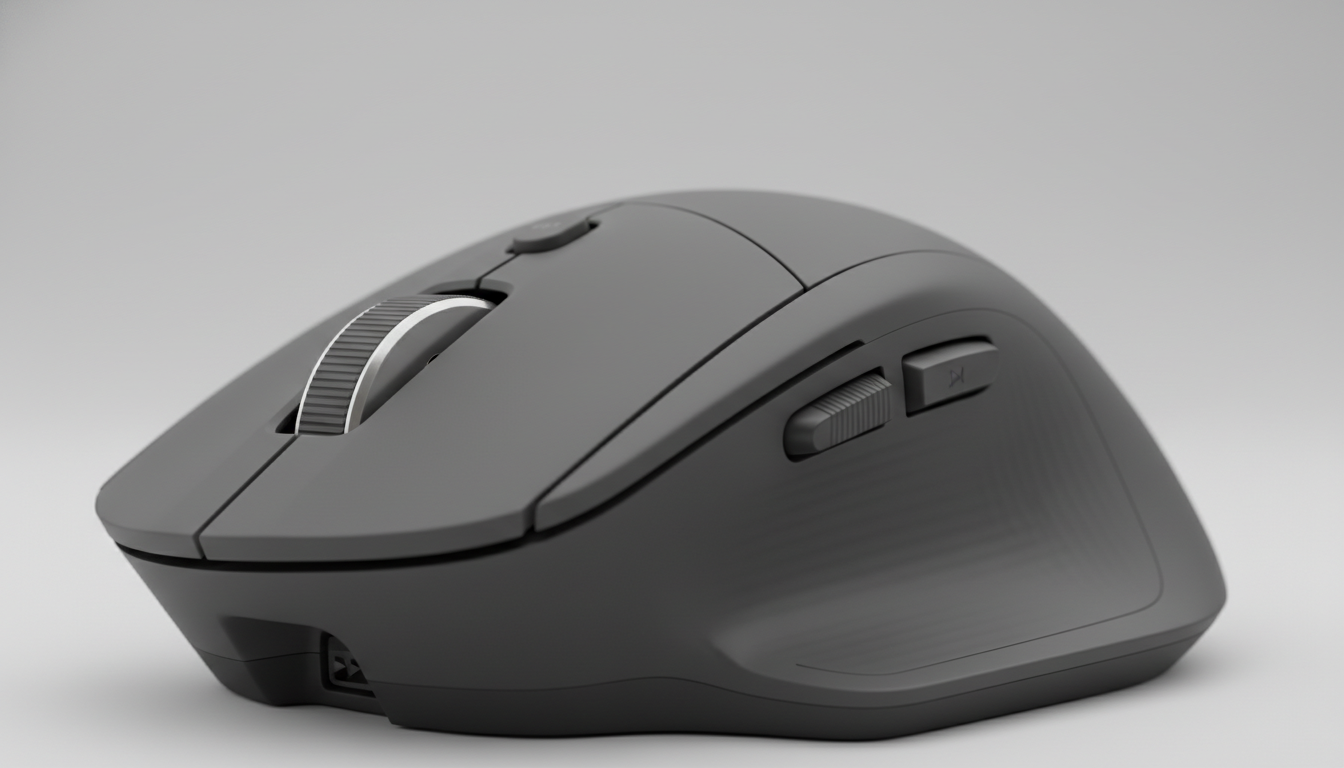
- Horizontal thumb wheel is useful for spreadsheets, timelines, and creative apps
- Customizable buttons improve productivity workflows
- Supports Bluetooth Low Energy and Logi Bolt USB receiver
- Good multi-device support for laptop, desktop, and tablet workflows
- Strong battery life with fast USB-C charging
Cons
- More expensive than most basic wireless mice
- Large shape may not be comfortable for small hands
- Designed mainly for right-handed users
- Too heavy for users who prefer lightweight gaming mice
- Not ideal for competitive gaming
- Advanced customization depends on Logi Options+
- Rubberized surface may show wear over long-term use
- Mac version may differ from standard edition in receiver bundle
- No user-replaceable battery
- Some users may not need all the productivity features
What Is Logitech MX Master 3S?
Logitech MX Master 3S is a premium wireless productivity mouse built for people who spend long hours working on a computer. It is designed for office work, creative workflows, coding, design, spreadsheets, video editing, writing, browsing, and multi-device productivity.
The MX Master 3S is not a gaming mouse. It is a work-focused mouse that prioritizes comfort, precision, scrolling speed, quiet operation, customization, and smooth switching between devices.
Logitech describes the MX Master 3S as a performance wireless mouse with Quiet Clicks, an 8,000 DPI track-on-glass sensor, and MagSpeed electromagnetic scrolling. The mouse can track on glass with a minimum 4 mm glass thickness, and its sensitivity can be adjusted in Logi Options+ on Windows and macOS.
For users who work all day at a desk, the appeal is simple: the MX Master 3S makes daily computer work feel faster, quieter, and more comfortable.
First Impression
The first impression of the Logitech MX Master 3S is that it feels serious and premium. The shape is sculpted for the right hand, the thumb rest feels natural, and the buttons are placed for productivity rather than minimalism.
It feels especially useful for people who move between many apps. Writers can use it for scrolling long articles. Designers can use the side wheel for horizontal navigation. Developers can scroll through long code files. Spreadsheet users can move quickly through large data sheets. Editors and marketers can map buttons to app-specific shortcuts.
The biggest difference compared with a normal mouse is how much control the MX Master 3S gives you. It is not just point and click. It is a workflow tool.
Main Features
1. Quiet Clicks
Quiet Clicks are one of the biggest upgrades of the MX Master 3S. Logitech says the mouse delivers the same click feel with 90% less click noise compared with the MX Master 3.
This makes the mouse excellent for shared offices, late-night work, libraries, coworking spaces, home offices, and video calls. The clicks still feel tactile, but they are much softer and less distracting.

For people who type, click, edit, drag, and work for hours, this small change makes the whole setup feel more comfortable.
2. 8,000 DPI Sensor
The MX Master 3S uses an 8,000 DPI optical sensor that can track on many surfaces, including glass. Logitech says the sensor is designed for high-resolution monitors and next-generation precision.
This matters if you use a 4K monitor, ultrawide display, multi-monitor setup, or high-resolution workspace. A higher DPI sensor allows smoother movement with less physical hand motion.
You do not need to use the full 8,000 DPI all the time, but having the option gives more flexibility.
3. MagSpeed Electromagnetic Scrolling
The MagSpeed scroll wheel is one of the best parts of the MX Master 3S. Logitech says it is precise enough to stop on a pixel and fast enough to scroll 1,000 lines per second.
This is extremely useful for long documents, spreadsheets, code files, websites, PDFs, and research pages. You can scroll slowly with precision or spin quickly through large pages.
Once you get used to this scroll wheel, going back to a basic mouse can feel slow.
4. Horizontal Thumb Wheel
The MX Master 3S includes a side thumb wheel, which is helpful for horizontal scrolling and creative workflows. It is especially useful in timelines, spreadsheets, design tools, video editors, and large documents.
For example, video editors can move across timelines more comfortably. Spreadsheet users can move left and right through columns. Designers can navigate canvases with less friction.
This feature is not essential for everyone, but for the right workflow, it becomes very useful.
5. Customizable Buttons
The mouse includes multiple buttons that can be customized through Logi Options+. Logitech’s support information lists buttons such as left/right click, back/forward, app-switch, wheel mode-shift, middle click, thumb wheel, and gesture button.
This is where the MX Master 3S becomes powerful. You can assign different actions for different apps. For example:
In Chrome: back, forward, tab switching In Excel: horizontal scroll and shortcuts In Photoshop: brush size, zoom, undo In Premiere Pro: timeline navigation In Notion: page navigation and quick actions
The more you customize it, the more useful it becomes.
6. Multi-Device Connectivity
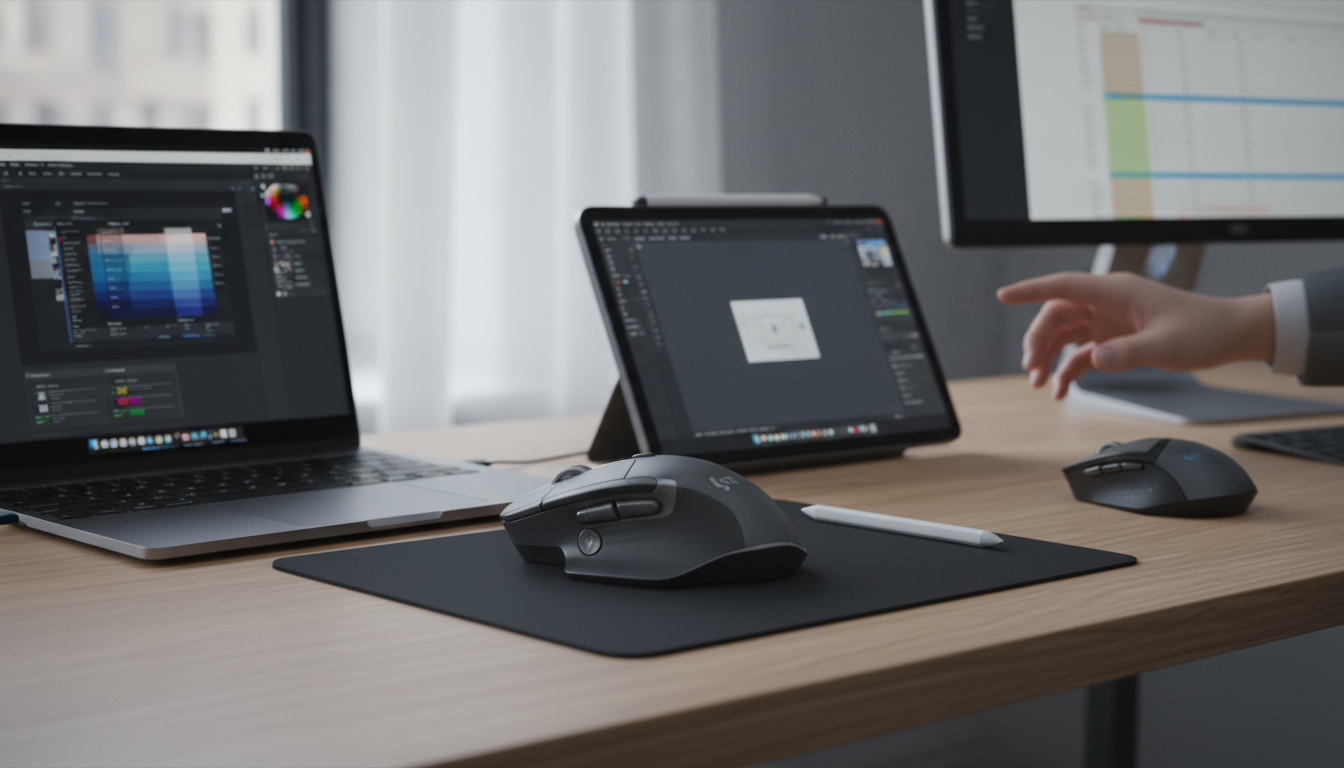
The MX Master 3S supports Logi Bolt USB receiver and Bluetooth Low Energy. Logitech’s specifications list Logi Bolt and Bluetooth as connection options, with support for major platforms such as Windows, macOS, ChromeOS, Linux, and iPadOS for Bluetooth basic functions.
This makes the mouse great for users who switch between a laptop, desktop, tablet, or multiple computers. You can connect it to more than one device and move between them using Easy-Switch.
For remote workers and people with mixed setups, this is a major advantage.
7. Battery Life and USB-C Charging
Battery life is another strong point. Logitech’s specifications list a rechargeable Li-Po battery, full charge time of about 2 hours, and quick charging where 1 minute gives around 3 hours of use and 3 minutes gives around 1 day of use.
This makes the MX Master 3S easy to live with. You do not need to think about charging every few days. Even when the battery is low, a quick USB-C charge is enough to keep working.
8. Ergonomic Shape
The MX Master 3S has a sculpted shape made for right-handed users. It supports the palm, gives space for the thumb, and encourages a more relaxed hand position than many flat mice.
This is useful for long work sessions. The mouse is not a medical ergonomic solution, but it is much more comfortable than basic office mice for many users.
However, the size may not fit everyone. People with very small hands may find it large, and left-handed users will not get the same experience because the shape is designed for the right hand.
User Experience
The Logitech MX Master 3S is best when used as a daily work mouse. It feels stable, comfortable, quiet, and powerful. The scroll wheel alone can make long documents and webpages easier to manage.
For productivity users, the mouse is excellent. It works well for writers, marketers, developers, designers, analysts, video editors, researchers, students, and office professionals.
The experience improves even more after customization. Out of the box, it is already good. But once you set app-specific buttons and gestures, it becomes much more valuable.
The main thing to understand is that the MX Master 3S is not lightweight or gaming-focused. At around 141 g in Logitech’s business specification page, it is heavier than many gaming mice. That weight helps it feel premium and stable, but it is not ideal for fast competitive gaming.
Pricing Overview
Pricing varies depending on region, retailer, color, edition, and promotion. In the U.S. market, the MX Master 3S commonly sits in the premium productivity mouse category, with retailer listings often around the $99–$120 range depending on edition and discount. Amazon’s listing, for example, showed the Standard Edition with Logi Bolt receiver at $114.94 at the time of the fetched result, while other variants may be lower or higher.
For casual users, this may feel expensive. But for professionals who use a mouse all day, the comfort, scroll wheel, quiet clicks, battery life, and customization can justify the price.
Pros
- Excellent ergonomic shape for long work sessions
- Quiet Clicks reduce noise without losing tactile feedback
- 8,000 DPI sensor works well for high-resolution monitors
- Tracks on many surfaces, including glass with minimum thickness requirements
- MagSpeed scroll wheel is fast, precise, and satisfying
- Horizontal thumb wheel is useful for spreadsheets, timelines, and creative apps
- Customizable buttons improve productivity workflows
- Supports Bluetooth Low Energy and Logi Bolt USB receiver
- Good multi-device support for laptop, desktop, and tablet workflows
- Strong battery life with fast USB-C charging
Cons
- More expensive than most basic wireless mice
- Large shape may not be comfortable for small hands
- Designed mainly for right-handed users
- Too heavy for users who prefer lightweight gaming mice
- Not ideal for competitive gaming
- Advanced customization depends on Logi Options+
- Rubberized surface may show wear over long-term use
- Mac version may differ from standard edition in receiver bundle
- No user-replaceable battery
- Some users may not need all the productivity features
Who Should Use Logitech MX Master 3S?
Logitech MX Master 3S is best for people who use a computer for long hours and want a more comfortable, customizable, and efficient mouse. It is especially suitable for:
- Remote workers
- Office professionals
- Writers
- Developers
- Designers
- Video editors
- Marketers
- Students
- Researchers
- Spreadsheet users
- Multi-device users
- People who want a quiet premium mouse
If you spend many hours every day using a mouse, the MX Master 3S can make your workflow smoother and more comfortable.
Who Is Logitech MX Master 3S Not Best For?
The MX Master 3S may not be the best choice for competitive gamers, left-handed users, or people who prefer small lightweight mice. It may also feel too expensive if you only need a simple mouse for casual browsing.
It is also not ideal if you dislike software-based customization. The mouse works without deep setup, but the best experience comes from using Logi Options+.
Final Verdict
Logitech MX Master 3S is one of the best productivity mice for professionals, creators, and office users. Its biggest strengths are comfort, quiet clicks, MagSpeed scrolling, precise tracking, multi-device support, and deep customization.
It is not the cheapest mouse, and it is not made for gaming. But for serious daily work, it is an excellent tool. The more you use shortcuts, multiple apps, long documents, spreadsheets, and creative software, the more value it provides.
Overall, Logitech MX Master 3S is highly recommended for anyone who wants a premium mouse that improves daily productivity and comfort.